Categories
Average Joe's Tips

Part Three Traveling with the iPad: Economical Accessories

As promised I am going to give you five economical travel accessories for the iPad. These accessories are less expensive, but do not have the same quality put into them as the products in the previous article. Not to say that they are not good because they are great products.

The first item is a case and I have selected the Incase Origami Sleeve. This is a great product because it is protective of the iPad and you can fold the sleeve up to make a stand for your iPad! This catch will only cost you $35. The next item up to replace the Tumi bag is the Golla G366 backpack. This backpack has many pockets perfect for fitting anything you want a a very protective spot to put a computer or iPad for only $90. Up next is the PortaPro by Koss. Like it’s name it is very portable and easy to carry making this perfect for international travel for $50. Very nice and reasonably priced is the iPad Keyboard Dock by Apple for $73. At first glance the Kensington adapter looks like the Tumi Adapter but no its about $30 less and its still great. This is clearly a great choice in these hard economical times to replace more expensive items.

Stay connected at my new twitter handle to stay updated 24/7 @TRMGaveragejoes and @realmacgenius

What do you think? Let us know in the comment section.

Categories
Uncategorized

Update 3/21/11 iPad 2 Shortage, AT&T + T-Mobile, AT&T Tethering Warnings

Learn about the iPad 2 shortages around the US and delayed launches around the world, AT&T’s acquisition of T-Mobile, and AT&T warning iPhone customers using unwarranted tethering applications and plans.

Do you need to run windows applications on your Mac? CrossOver, by CodeWeavers can help! Learn more about how to use CrossOver and CrossOver Games to run windows applications on your Mac . No need to reboot, no need for a virtual machine AND no need for a window’s license!


Categories
Average Joe's Tips News

How to: Enable iPad Orientation Lock Switch 4.3


What if one of the most anticipated features for the iPad 2 was a small switch? The small switch is on the new iOS 4.3 which re-enables the iPad orientation lock switch, which was temporarily turned into a mute switch in a previous iOS update. In the newest iPad update, it now lets you choose whether to have the side switch function as a rotation lock or as a mute button. Here are the steps to switch between the rotation lock and mute.


  • Tap on “Settings”
  • Scroll to and tap on “General”
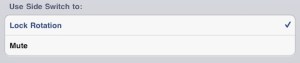
  • Scroll down and look for “Use Side Switch to:” and tap on “Lock Rotation”
  • Exit settings by clicking the home button and you are done


In this picture, you can tell that we have switched the rotation lock on instead of the mute button:


If you’re wondering to why anybody would care about this, here’s some background information. Apple changed the rotation lock to be a software feature in the previous iOS. This caused the mute button to turn into the side switch. Many people were actually mad at this because it use to be very convenient to just turn the lock on without any hassle. Apple listened to the people and gave us the choice to turn the side switch into a rotation lock or mute button. How nice of Apple to make this change, if you think this is useful, let us know. Drop a comment and tell us if this affects you or if you think this matters at all.


Categories
News

iPad 2 Zooms by the Motorola Xoom

How fast is the iPad 2? How about adding a dual core A5 chip and 9 times the graphic speed. When you’re flipping through your pages on the home screen, you will notice the changes. The faster graphics make games smoother and more realistic. Certain games with video will show a smoother transition and not as sluggish you could say. The A5 dual core will do two times the work at once. While your multitasking to get to your applications faster or watching a movie, your whole iPad will seem like it’s hyped up on steroids. Everything just works faster and better with dual core. The new iPad two went face to face with the Motorola Xoom, and let’s just say it wasn’t a fair battle.


The iPad 2 and Xoom both share a dual core chip, but nothing can compete with the A5 chip, especially the Android powered chip. Our friends at AnandTech ran some benchmark speed tests, and it completely tore the Xoom apart. The iPad 2 beat the Xoom by almost 3.7 times faster. It also topped the original iPad by 5.4 times faster by framerate. With the faster speed of the new iPad 2, the developers will be able to create better apps that offer better graphics and faster performance. I think that the Xoom will never be as fast as the iPad because of who it’s built by. Apple’s A5 chip is the new best thing, but this certain chip will always be fast and will tear apart the competition.


The new iPad 2 is a different type of tablet and also has new technology then the original iPad has. It comes with the dual core A5 chip and 9 times the graphic speed which I talked about before. It kept the same 10 hour battery life which to me is astonishing considering the fact that the iPad is technically doing twice the work then the original iPad. The new iPad 2 also has the three-axis gyroscope which is really cool. You get to see apps in a different way, and it may also seem like it’s more realistic. The iPad 2 has the new Smart Covers which make the iPad look more colorful. The Smart Covers are a magnetic attraction for the iPad 2. The iPad 2 it self has built in magnets that align perfectly with the Smart Covers. The Smart Cover can fold backwards so that you can turn it into a keyboard stand or a FaceTime/video stand. The Smart Cover comes in two textures, Polyurethane and Leather.


Categories
Average Joe's Tips

How to: Enable Four and Five Finger Gestures a.k.a Multitasking Gestures

One of the biggest disappointments of the iOS 4.3 was that we knew the neat four- and five-finger gestures wouldn’t be there. But, we didn’t realize they were actually there and just needed a few clicks on the mouse to be enabled. These gestures allow less use of the Home screen and more use of your fingers; after all it is a tablet.

So how do we enable these four- and five-finger gestures, a.k.a Multitasking Gestures? First we need to start with Xcode which comes standard on your Mac depending on your settings, alternatively you can download Xcode from the App Store if your willing to spend the $5. We’re using a little older edition of Xcode, Xcode 3.2.5, surprisingly after downloading a few files from the Internet it was ready to set into development mode.

After you have installed Xcode, fire up Xcode and plug in your iPad. The Organizer should pop up immediately. Under the “Devices” tab on the side, find and select your iPad.

Once your iPad is selected, click on the large titled “Use for Development” button. It will ask you for the “Developer Account” information, just click cancel if you do not have the $99 account. Depending on the version of Xcode, it might need to download a few files, then it will process them — so let Xcode do it’s thing. When Xcode doesn’t show any activity, move down to the next step.

On your iPad, launch the Settings app. Then select General and scroll down until you see the Multitasking Gestures. It’s flip should already be in the on position, and away you go, no more need for the Home button.

Could the Home button be ditched in future versions of iDevices? How did this work for you?