 On June 11, Apple introduced the new 15-inch MacBook Pro with Retina display. But what has changed? Well, the screen’s resolution is 2,880-by-1,800, which is about 5.1 million pixels on a 15.4 inch display. Compared to an HDTV, which has a screen resolution of 1,920-by-1,080, the Retina Display has a significantly larger amount of pixels. This gives the screen a clearer, crisper look. It can change the way you look at a computer screen when you see how finely defined the images are on the screen, and at a certain point, it can make you forget that you’re looking at a screen in the first place. Apple also noted that the new Retina display reduces glare, making it easier to see the screen even in the sunlight, which is very helpful in outdoor environments. The New MacBook Pro with Retina display is only 0.71 inch thin and 4.46 pounds, so it is lighter and thinner than previous MacBook Pros, which increases ease of portability by a significant amount. The only aspect of the new MacBook Pro that you will have to watch out for is compatibility. There are still some applications and websites that aren’t suitable for the Retina Display which may look pixelated, but they will hopefully be updated to suit the capacity of the Retina Display.
The New MacBook Pro with Retina Display takes full advantage of the all-flash storage to make the MacBook faster, quieter, and lighter than previous MacBook Pros that used optical drives. The MacBook Pro with Retina display also uses the Intel Core i7, Intel HD Graphics 4000 and NVIDIA GeForce GT 650M with 1GB of GDDR5 memory. These components give it amazing performance and have the capabilities to produce vivid images, videos, and games on the screen. Although it is a high-performance notebook, it still packs a 7-hour battery life due to the large 95-watt hour battery.
What else is different? Well, the ports have definitely changed. On one side, we have the MagSafe 2 port. This poses a disadvantage to those who have the older MagSafe Power Adapter. Without a $10 MagSafe to MagSafe 2 Convertor, you are forced to use the new MagSafe 2 Power Adapter. Also, Apple got rid of the FireWire 800 port and Ethernet port, but it now has two USB 3.0 ports and two Thunderbolt ports. They also included an HDMI port and the SDXC card slot. The HDMI port is a great addition to the MacBook Pro with Retina Display, since adapters always had to be used to hook up previous MacBook Pros to HDTVs and projectors. To keep the MacBook Pro with Retina Display slim, they also removed the DVD drive.
When it comes to pricing, the MacBook Pro with Retina Display starts at $2,199.00 for the 15-inch compared to the 15-inch MacBook Pro, which is $1,799.00. That’s an extra $400 for the Retina Display. It does also come with 8GB of memory, compared to the 4GB of memory in the MacBook Pro. So you have to decide whether the extra memory, Retina Display, and flash storage is worth the extra money or not.
In conclusion, the new MacBook Pro with Retina Display has an amazing display that surpasses previous MacBook Pros, as well as better performance, while still having great battery life. The MacBook Pro with Retina Display does deviate from previous models, as the ports are very different, but mostly in a positive direction. OS X Mountain Lion will also really compliment the MacBook Pro with Retina Display, as will other applications when they are updated for the Retina Display.
Feel free to leave a comment or suggestion.
[Image Source]

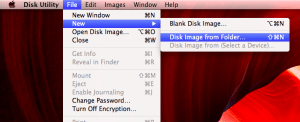
 Once that is open, select the file you would like protected. Fill in the Save As and Where information, then for Image Format select: read/ write and for Encryption select: 128-bit and press save.
 After that look in the area where you saved your file and your password protected folder will apear as a .dmg, next you will need to click on it and enter your password to access the drive. From there you can just click on the drive, and your files from the folder will apear. The picture shows the three files you should end up with.


![[Image Source]](http://images.apple.com/macbook-pro/features/images/hero.png)