Categories
Average Joe's Tips

Heat to Head: iPad 2 vs. Samsung Galaxy Tab

As the tablet wars are just beginning, what device will you choose? Samsung has been doing relatively well with their success on mobile touch screen devices, but Apple has proven their dominancy throughout the past years. Samsung has recently refreshed their beloved Galaxy Tab and has many attributes where it trumps the iPad 2. But overall, which device will fit your lifestyle better. What will your iPad be used for and the price differences that should be considered. Also, don’t forget the cost of 3G service can start to add up.

Remember, that this is only a comparison of hardware. The user experience will differ, the iOS tends to be more user friendly than the Android; however, the Android boasts more of a “geeky” experience. Don’t forget the apps, the App Store has a plethora of apps in contrast to the Marketplace.

Device Apple iPad 2 Samsung Galaxy Tab
OS iOS 4.3 Android 3.0 Honeycomb
Display & Resolution 9.7 inches IPS LCD 1024×768 pixels 10.1 inches WXGA
1280 x 800 pixels
Processor 1GHz Dual-Core A5
9x GPU Performance
1GHz Nvidia Tegra 2 Dual-Core
RAM 512MB 1GB
Memory Storage 16GB / 32GB / 64GB 16GB / 32GB / 64GB
Micro-SD Card Slot/Expandable No Yes
Micro SD Up to 32GB
Rear-Camera 720p HD Video Recording Capable 3 MP with LED Flash 1080p, 720p HD Video Recording Capable
Front-Camera VGA 2 MP
Connecting Ports 30 pin connector (limited) USB 2.0
Wi-Fi 802.11 b/g/n 802.11 b/g/n
3G Quadband HSPA
CDMA / EV-DO Rev. A
UMTS/GSM/HSDPA
4G Support No HSPA+ 4G
App Market Apple App Store Android Marketplace
Amazon Appstore
Barometer No No
Gyroscope Yes Yes
Accelerometer Yes Yes
Adobe Flash No Yes
Battery Life (Running) 10 Hours 10 Hours
Dimensions & Weight 241.2 x 185.7 x 8.8
613g (AT&T), 607g(Verizon)
601g (Wi-Fi)
256.6 x 172.9 x 8.6 mm
595 grams
Carrier AT&T, Verizon AT&T, Verizon, Sprint, T-Mobile
Price (3G Models) $629(16GB), $729(32GB), $829(64GB), $499(16GB), $599(32GB)
TestFreaks Average 10/10 n/a
Categories
Reviews

App Review: AppStart

Recently got an iPad 2? Been to the game for a while with the first gen iPad and thought you’ve exhausted every HD app out there? To quote Bachman-Turner Overdrive, “You ain’t seen nothin’ yet!”

AppStart by the folks at AppAdvice is an in-depth look at every kind of iPad app for use by power users or casual users.

With over 350,000 apps out there, finding the right one for your needs can be stymying. AppStart sets you in the right direction with its review of apps in different categories from turning your iPad into a laptop, to their game recommendations (gamers and non-gamers). Each category lists cherry-picked apps, along with a blurb describing them and even more importantly, their price. You’re given a good spread of free and paid apps to choose from. There is even a hardware review to help find the right iPad accessories.

The app’s layout alone is a marvel. Four pages long, each one is packed with the different categories and visually appealing clip art to go with them. Swiping down will scroll from page to page, and horizontal swiping will return you from the articles. The pages are so chocked-full of information that I find something new every time. AppStart truly takes advantage of how a digital magazine should be.

AppStart is free, but if you become smitten with it and want to get more (and why wouldn’t you), the AppAdvice app ($1.99) is updated every day.

[Image Source]


Categories
Uncategorized

One Mac to Rule Them All

As a network technician, I found myself in a unique position when it came to my Mac. How far could I take the task of administering my LAN’s user profiles and machines using my MacBook Pro? Turns out it is possible.

My Mac is on the same network as all the Dells on campus. It’s my job to remotely unlock user accounts, add new computers to the network, and manage the files on the four servers. Here’s what I’ve found:

1. Use OS X 10.6 Snow Leopard

I know there are still those out there who love Tiger. Trust me, I’m one of them. But the fact of the matter is that Apple didn’t really incorporate the tools necessary for working on PC networks until OS X 10.5 Leopard. Snow Leopard improved upon those tools, such as notifying me when my network password is about to expire. In general, Snow Leopard is more stable.

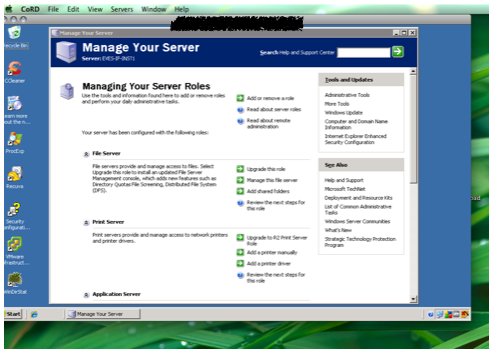
2. Download CoRD

CoRD is a free download that will let you open Windows servers on your Mac. What’s great about this program is that it will open the server up in a window on your desktop. No restarting or logging off, or anything like that. Move your mouse around the server window, and you’re controlling the server’s interface. From here, you can easily get in to Active Directory to manage user accounts, or access any of the other tools on the server.


3. Use command+k to access the server folders

Browsing through folders on the server is no problem at all, though you may not see them initially. Open Finder and select Go > Connect to Server (command+k). From there, type in smb://YourServerName.YourDomainName

You’ll need to authenticate with your credentials, but after that you’re good to go.

If there are other Macs on the network, make sure to log on to them as an administrator. In Sharing under System Preferences, make sure to select Remote Management. That way you’ll be able to share the screens of the client Macs after authenticating. It’s not Apple Remote Desktop, but it can at least show you what’s going on with the user.

With the dawning of the Age of Intel, Macs have become better and better with working along side PCs. Being an administrator with a MacBook Pro hasn’t hindered me a bit.

If anything, I have to remind myself that Expose is not an option for me when I do use a PC. Can’t tell you how many times I’ve jammed the cursor into the corner, expecting something to happen.

[Image Source]

Categories
Uncategorized

Productivity Combo: Stickies and Spaces

There are times when Apple releases a new feature, and you think, “Wow, this is really cool!” Then there are other times when you think, “This looks cool, but how the heck would I use it?” Spaces, first introduced in OS X 10.5 Leopard, felt more like the latter. Grouping applications to virtual desktops looked promising, but its usefulness felt questionable. Stickies has been around since OS 7, but even that one didn’t feel too purposeful. karleystokes lana rhoades onlyfans Karley Stokes All the notes just litter the desktop until the app is closed or you right click on the icon in the dock to hide. Creating the notes with the Stickies widget in Dashboard isn’t much better. But combining Stickies and Spaces leads to something different. Open System Preferences and click on Expose & Spaces. Select the Spaces tab and then check “Enable Spaces.” After you select the “+” symbol, select Stickies and assign it to Space 1. Done. But from there, you can customize Spaces further, adding or taking Spaces away or adding other apps in to the mix. Hit F8, the Spaces icon, or Expose, and bam! Stickies. Done looking at them? Just go back to your first space. From there you can add the functionality of the way Stickies works with any highlighted text by clicking and dragging it on to the Stickies dock icon (in Safari, Command-Shift-y eliminates the need for click and drag). Color-coding is as simple as selecting Color from the menu, text can be put in bold to show importance, or images can be added. The features of OS X never cease to amaze. Apple has spent so much attention to user friendliness with intuitive functionality that applications can work together to create a greater effect. Now, if I could only wrap my head around how to use Automator. I guess I’ll make a note to look into that.[Image Source]


Categories
Reviews

Crossover Review

Having a Mac has ups and downs, it’s awesome for music, business, and school. One thing Mac is definitely lacking are games. All those awesome titles like Call of Duty, Battlefield, and others are usually only on Windows and occasionally iOS, but there is always an answer and in this case it is called CrossOver. CrossOver brings all those great applications made for Windows to your Mac and even Linux. It comes in three different versions to fit your needs: CrossOver Standard, CrossOver Games, and CrossOver Professional. Here is a quick summary of how it works. It emulates windows, but there is no dealing with virtual machines or full reboots. CrossOver simulates a reboot within the application if one is needed. CrossOver beats virtualizing games on your Mac in VMware Fusion or Parallels by not having to run unnecessary processes.

It also works with Wine, which pretty much ports or brings over the important files from Windows and allows your Mac to run the applications in CrossOver. It works very well with CrossTie games, but I have found that games that are not supported by CrossTie directly have a slight amount of lag, but for gaming on a Mac, the graphics and speed are on par. However, you also need to take into account that the lag might not be from the application, but the hardware of the Mac.

Above I talked about CrossTie, which helps you by supporting certain games that can be found on the CodeWeavers website’s compatibility page. CrossTie has everything you need, and downloads everything you need. Even if your software isn’t supported, almost all the time you can get your software to work. Also, if your software isn’t supported by CrossTie you can pledge for it, and get it supported by CrossTie.

My final thoughts of CrossOver are that it works extremely well when you think of all that CrossOver is doing. It is very fast, and being an avid game, I have found that games are just amazing on the Mac thanks to CrossOver.