Categories
Uncategorized

CONTEST! Draw With Pages, Sponsored by Targus

The great thing about Pages is how it’s both a word processor and so much more than a word processor at the same time. For example, the Shapes menu gives you access to a selection of shapes to be dropped right into your document. Using the Inspector tool, you can customize the shape’s color, border, orientation, and even add a drop shadow.

But it gets even better than that! With some creativity imbued along with the tools available, you can actually make some pretty neat works of art. Said works of art could even be submitted to online contests, such as the one we’re hosting right now.

Here’s the deal: the tutorial below will help you draw your masterpiece with Pages. Take a screenshot and then send it in!

I’ll walk you through the basic steps for making fanciful designs. Have you ever seen user-submitted Mii’s for the Wii? I often scratch my head, wondering “How did they do that with the few things they’re given?” You need to adopt the same mentality with Pages. Push it as far as you can take it. Use punctuation for facial features, incorporate text, use borders as part of your subject.

1. Build a “Gumby” foundation

For whatever reason, when you drop a new shape into Pages, it appears in “Gumby” lime green. You can always change the colors later, but for the foundation, I recommend focusing more on the design you’re trying to achieve. Here’s the start of a self-portrait using just the shapes to “build.”

When thinking of something to draw, try imagining it as the different shapes Pages offers. Try rotating the shapes to fit your needs. This can be done with the Inspector tool. You’ll become real familiar with this guy. Click on the blue “i” in the menu (or option-command-i) and then select the Metrics tool (ruler icon). Click on the rotate dial and turn the shape until it’s where you need it.

Also, when placing shapes, you can always right click on overlapping shapes to either send them back or bring them forward (think of pieces of paper physically layered on top of each other. How would you want them to be layered?).

2. Outlining

Once you have all the pieces in place, go through and determine how the outlines of the shapes will play into your drawing. Do you want the shapes to stand out, or would you rather they meld together? Since I have multiple shapes in play for different parts of my face, I removed the lines. In the Graphic Inspector (square and circle icon) you can change the line settings or remove it all together.

Notice that I left the eyes outlined so that I could actually find them in the sea of green.

3. Coloring

Here’s where the fun begins. Now you can start to give your drawing some life by replacing the lime green with colors. Again, using the Graphic Inspector, you have a variety of options with Fill. Play around with the different options until you find what will work best. You can even change the colors of the shape’s borders to blend them.

4. Add details

Here’s where you add the finishing touches. The pen tool in the Shapes menu can help add those fine lines. Drop shadow can be used to add a dramatic effect. I have a fever, and the only cure is more drop shadow!

5. Finish it up

I added a white box with no border at the bottom of my picture to even out the arms and torso. I then placed a larger “frame” box around my picture and sent it to the back. Finally, I used a line shape to bridge the area covered by the white box. By using the jagged border, it kind of blends them together. Then I finished with a gradient I liked.

6. Take the screenshot

If you don’t know about shift-command-4 then you’re missing out on a wonderful tool. Hitting this key combination will turn your pointer into a crosshair. Click and drag it over the area you’d like to capture, and it will instantly take a screenshot and save it on the desktop as a .png file. You can rename the file and also turn it into a .jpg extension if you need to. Not happy with the area you selected? Hit Esc before letting go of the mouse and the crosshair goes away. Watch out that you don’t capture your Pages cursor in the shot.

Here’s how to enter

We at The Real Mac Genius want to see how far can YOU take drawing with Pages? The contest is simple: “draw” anything you’d like using just the shapes in Pages. Draw your favorite Apple product, a self-portrait, or even your favorite Smurf! Take a screenshot, and e-mail it to me at: [email protected], with “PAGES CONTEST” in the subject line. Please note: NO clip art or photos can be incorporated into the drawing. Basically, don’t bring anything into Pages. This will help keep the drawing focused on what Pages can do.

So, what’s it all about, Alfie? Well, we have two cool prizes to give away, thanks to Targus.

1st place: Targus Truss Case & Stand for iPad 1 & 2
2nd place: Prize detail to come shortly.

Rules

You must be 18+ years of age and reside within the 48 contiguous United States. One entry per person. Final entries due by Saturday, May 28 at 11:59 PM EST. No entries received after this time will be considered. Winners will be selected based on creativity, design, and adherence to the rule of not importing any clip art or photographs. Winners will be notified by June 1st. Good luck!

Categories
Average Joe's Tips

How To: Find and Use the iTunes Equalizer

For those of you who are new to a Mac or just technology in general the iTunes Equalizer  is what allows you to make the sound of your music less distorted by equalizing its response over a frequency range. and dylan phoenix ameliabeebee To access the equalizer you will first need to open iTunes. After that click on Window which should be located in the menu bar, then scroll down and click on Equalizer. There are two ways you can change your equalizer and that is by manually changing it or by selecting a preset. If you are going to manually change your equalizer I would recommend that you experiment with the sound for a while because it depends on the kind of music you have and your speakers. There is also the option of looking up different equalizer settings if you want a quick customized setting. Stay connected at my new twitter handle to stay updated 24/7 @TRMGaveragejoes and @realmacgenius

What do you think? Let us know in the comment section.

Categories
News

iPhone 5 Specs

Is the new real iPhone 5, or is it just another prototype? Many sources are confirming that the new iPhone 5 will be a completely new re-design unlike the iPhone 3G and iPhone 3GS. Sources are saying that the new iPhone 5 will not be anything like the iPhone 4 and is going away from the square shape. Instead, the iPhone 5 is said to look like the 2010 MacBook Air’s design. It is said to look like a “teardrop” going from thicker to thinner from the top to bottom. This is jus a prototype because Apple will surely test many different products before the iPhone 5 hits the market. The design looks like the fourth-generation iPod tough. It is very thin and the display is bigger going from 3.5 inches to 3.7 inches, the pixels are staying the same though.


The new home button is like a stretched out circle. On the prototype, it may be a gesture-based home button. That has to be just a little bit cool. Apple is also trying to see if they can hide the earpiece and the sensors behind the screen. That will make the iPhone 5 a little cleaner and a little more like the fourth-generation iPod touch. Keep in mind that this information is exactly true. There will continue to be a lot of new iPhone prototypes. This iPhone 5 is what could be the new iPhone 5, but we will not know until Apple itself introduces the iPhone 5. There will be many new sources that come with different designs and dimensions of the iPhone 5. Stay tuned for more information and we will continue to deliver the news. What do you think of the new iPhone 5? Drop a comment below and let us know.


Categories
Reviews

Review: Dry Case

What is the DryCASE? The DryCASE was developed by Dry Corp. The DryCASE is a waterproof case that can be used to protect your phone, camera, iPod, and more from water. The DryCASE has many uses, such as for listening to music by connecting waterproof headphones to the headphone jack or for taking pictures with your camera underwater. Before we get into the details, let’s first break it down a bit:

Summary

  • Name: DryCASE
  • Brand: Dry Corp
  • Price: $39.99
  • Warranty: One year warranty

Point – Scaled Grading

Style: 1-25 Given: 19

Price: 1-15 Given: 13

Quality materials: 1-15 Given: 12

Brand name: 1-10 Given: 5

Modern technologies: 1-15 Given: 13

Compatibility: 1-15 Given: 12

Ease of use: 1-5 Given: 4

OVERALL: 78/100 C+

Evaluation

  • Style: It is designed with the purpose to keep water out, which it definitely accomplishes, but the style is sacrificed in order to keep the electronic devices dry.
  • Price: The DryCASE is aggressively priced. Most waterproof cases range from $25-$50, and the DryCASE offers a unique style. Do you really want to use your electronics near water? If so, the DryCASE should be taken into consideration.
  • Quality materials: The DryCASE is not a case for normal use. The materials are suitable for keeping the water out and away from your electronic devices. The materials feel very cheap and fragile, yet the product still works effectively. Just make sure you don’t drop your device, because the case will not protect it.
  • Brand name: Dry Corp is not one of the more popular Apple case makers. However, in terms of waterproof technologies, they have a solid reputation.
  • Modern technologies: The case itself is a fairly new idea. The DryCASE gives you the ability to use the headphone jack — but remember to use waterproof headphones.
  • Compatibility: The case is very universal. The downfall is that it is a “one size fits all” type of case, which doesn’t allow for some devices to fit. Dry Corp also sells the DryCASE Folio, which is made for the iPad, Kindle, and other tablets.
  • Ease of use: The DryCASE is easy to use — it’s pretty simple. The contents include a small paper containing the instructions. The instructions tell you how to use the case, but they don’t tell you how to put on the armband that is included other than putting it in the slot on the back of the case — we would have liked to see more clearer instructions.

Final Thoughts

The DryCASE is a case that can provide waterproof protections to your portable electronic devices. I would recommend putting a small piece of paper in the case and testing the case out before using it, so you don’t have to put your electronics in jeopardy if the case fails to work. The case itself is only useful if you are planning to use it for the purpose of keeping the water away from your electronics. If you are constantly near water and using your electronics, such as at the beach or near the swimming pool, you should buy this product. So go ahead and “Get Your Tech Wet”.

Feel free to leave a comment.

[Image Source]

Categories
News

iPhone and iPad Expand in Enterprise Market

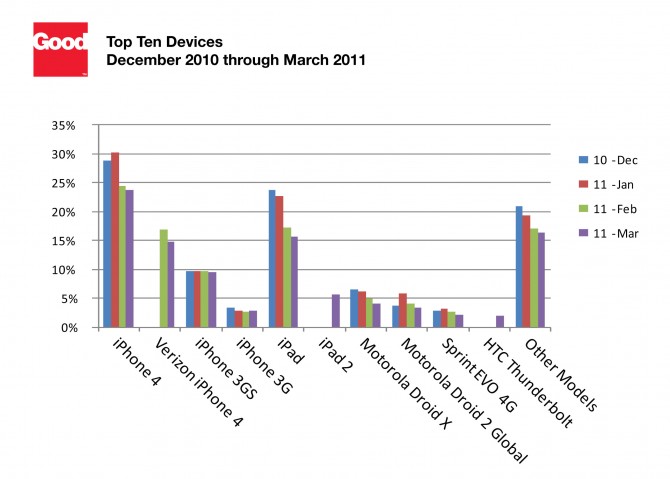
What’s better then beating the Android phones? Apple certainly has dominated the Smartphone industry and crushed their opponent’s. Apple’s name itself can beat any other company, but the iPhone’s haven’t had the best reviews written about them in a while. Many critics give harsh  reviews about the iPhone, but when it comes down to it, it doesn’t matter about the critics. The critics don’t sell the phone itself and there are millions of more customers then a couple of reviewers. Apple knows how to market the iPhone better then the Android people do, that’s the bottom line. You think I’m lying? Take a look at these charts:


Apple has certainly dominated the industry with the variety f the iPhone’s and iPad’s. One of the main reasons that Apple continues to dominate is that it continues to make many different forms of the iPhone and iPad. The iPad 2 just came out; it took less then a year for a new iPad to come out. That is a remarkable feat by Apple. Another good reason is that AT&T dropped the iPhone 3GS to just $49. That is pretty cheap for an iPhone that still has many capabilities. The iPhone will continue to grow rapidly and honestly, I’m not sure there is a competitor that can beat the iPhone out right. I see Apple having a long time success with the iPhone’s. What do you think? Drop a comment below and let us know.